Bring your own key
You choose what answers: a free local model on your machine, a cloud provider with your own key, any OpenAI-compatible endpoint, or the Pro models on our bill. This page walks through every key, where it comes from and exactly where it goes in Settings.
Before you start
Ollama: a free model on your own machine
No key, no account, nothing leaves your computer. Good for drafts, rewrites and the résumé tools; a 7B to 8B model on 16 GB of RAM is comfortable.
- Install Ollama. Settings → Local AI setup (Ollama) shows the one-line command for your system, with a Copy button:
winget install -e --id Ollama.Ollama # Windows brew install ollama # macOS curl -fsSL https://ollama.com/install.sh | sh # Linux - Pull a model. In the same card press Install beside a model (it runs
ollama pullfor you), or in a terminal:ollama pull llama3.2. The card shows Ollama running ✓ once the server answers onhttp://localhost:11434. - Select it. In AI provider choose Ollama (local, no key). The server URL is filled in; leave it unless you run Ollama elsewhere. Press Use beside the model, or Use this in the model manager.
- Optional. Set System RAM so the resource warnings are right, and press Load into VRAM to warm the model before a long session.
OLLAMA_ORIGINS=* (or https://vulture.gixts.com) in the environment before starting Ollama, then restart it. The desktop app needs no such step.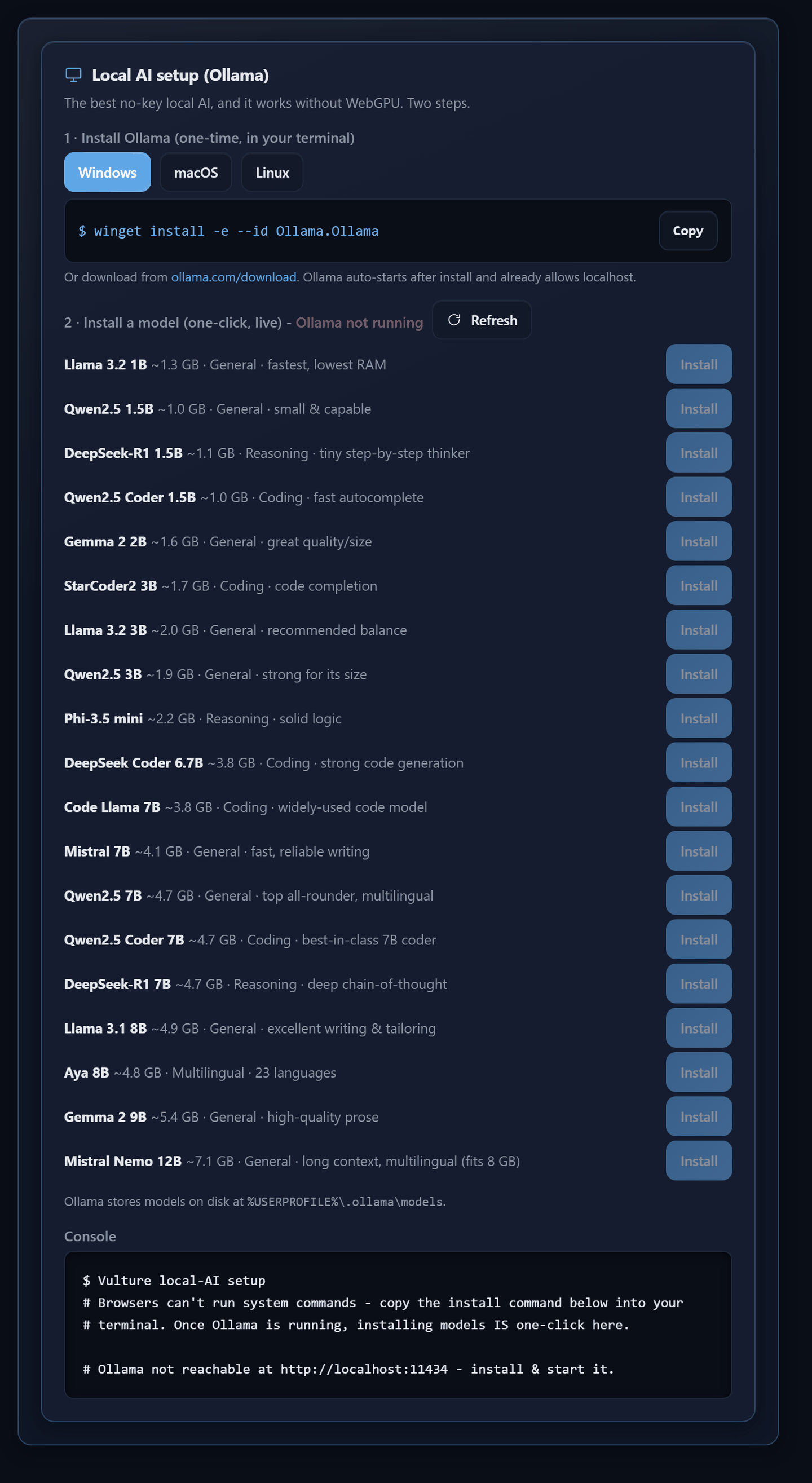
LM Studio
- In LM Studio, load a model and start the local server (the OpenAI-compatible one, on port 1234 by default).
- In AI provider choose LM Studio (local, no key). The URL
http://localhost:1234/v1is filled in. - Vulture listens for the server and shows Server live at … · N models loaded with the loaded models as chips. Click a chip to use it, or press ↻ Check after loading a new one.
Cloud providers with your own key
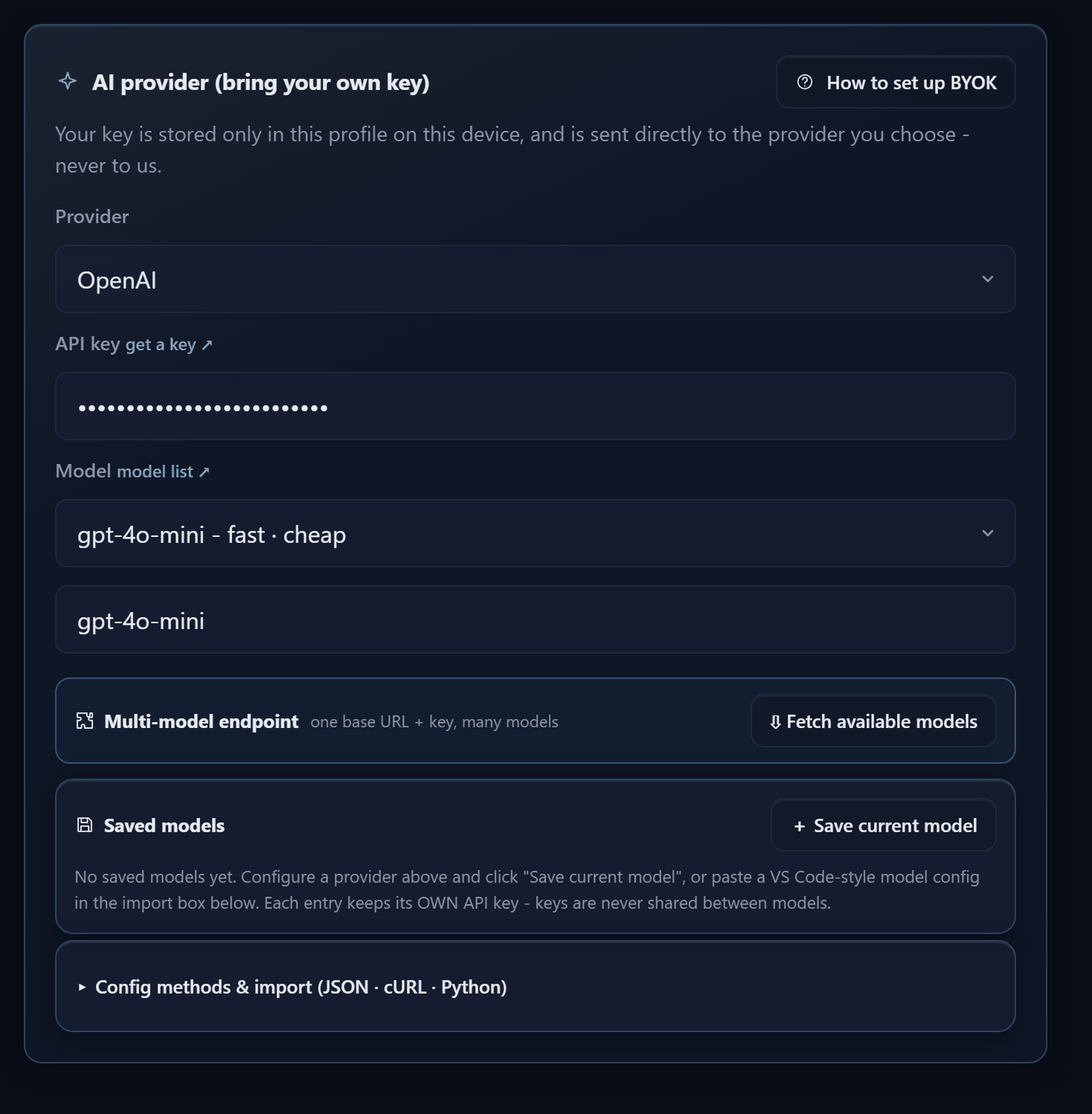
Same three steps for all of them: choose the provider, paste the key, pick a model from the preset list or type any model id. The get a key ↗ link beside the key field opens the provider's key page; model list ↗ opens its model documentation.
| Provider (as listed) | Where the key comes from | Key looks like | A good first model |
|---|---|---|---|
| OpenAI | platform.openai.com → API keys | sk-… | gpt-4o-mini |
| Anthropic | console.anthropic.com → API keys | sk-ant-… | claude-sonnet-4-5 |
| Gemini | aistudio.google.com → Get API key | AIza… | gemini-2.5-flash |
| Groq (fast inference) | console.groq.com → API keys | gsk_… | llama-3.3-70b-versatile |
| OpenRouter (many models) | openrouter.ai → Keys | sk-or-… | any, including free ones tagged :free |
| Mistral AI | console.mistral.ai → API keys | 32 characters | mistral-small-latest |
| DeepSeek | platform.deepseek.com → API keys | sk-… | deepseek-chat |
| Together AI | api.together.xyz → API keys | 64 hex characters | a Llama or Qwen instruct model |
| xAI (Grok) | console.x.ai → API keys | xai-… | grok-3-mini |
| Perplexity (web-aware) | perplexity.ai → Settings → API | pplx-… | sonar |
| Fireworks AI | fireworks.ai → API keys | fw_… | a Llama instruct model |
| Azure OpenAI | Azure portal → your OpenAI resource → Keys and Endpoint | 32 hex characters | your deployment name |
- Provider. Pick it from the dropdown under Cloud.
- API key. Paste it. The field is masked and the key is stored only in this profile.
- Model. Choose a preset, or pick Custom / other… and type the id exactly as the provider spells it.
- Azure only. Also fill Endpoint (
https://<resource>.openai.azure.com), Deployment name and API version (for example2024-10-21). - Keep it. Press + Save current model so the key and model live in your library and the form clears. You can save several and switch from the console.
Custom and OpenAI-compatible endpoints
Anything that speaks POST /chat/completions or the Responses API: vLLM, LiteLLM, a company proxy, a self-hosted gateway, or a provider not in the list.
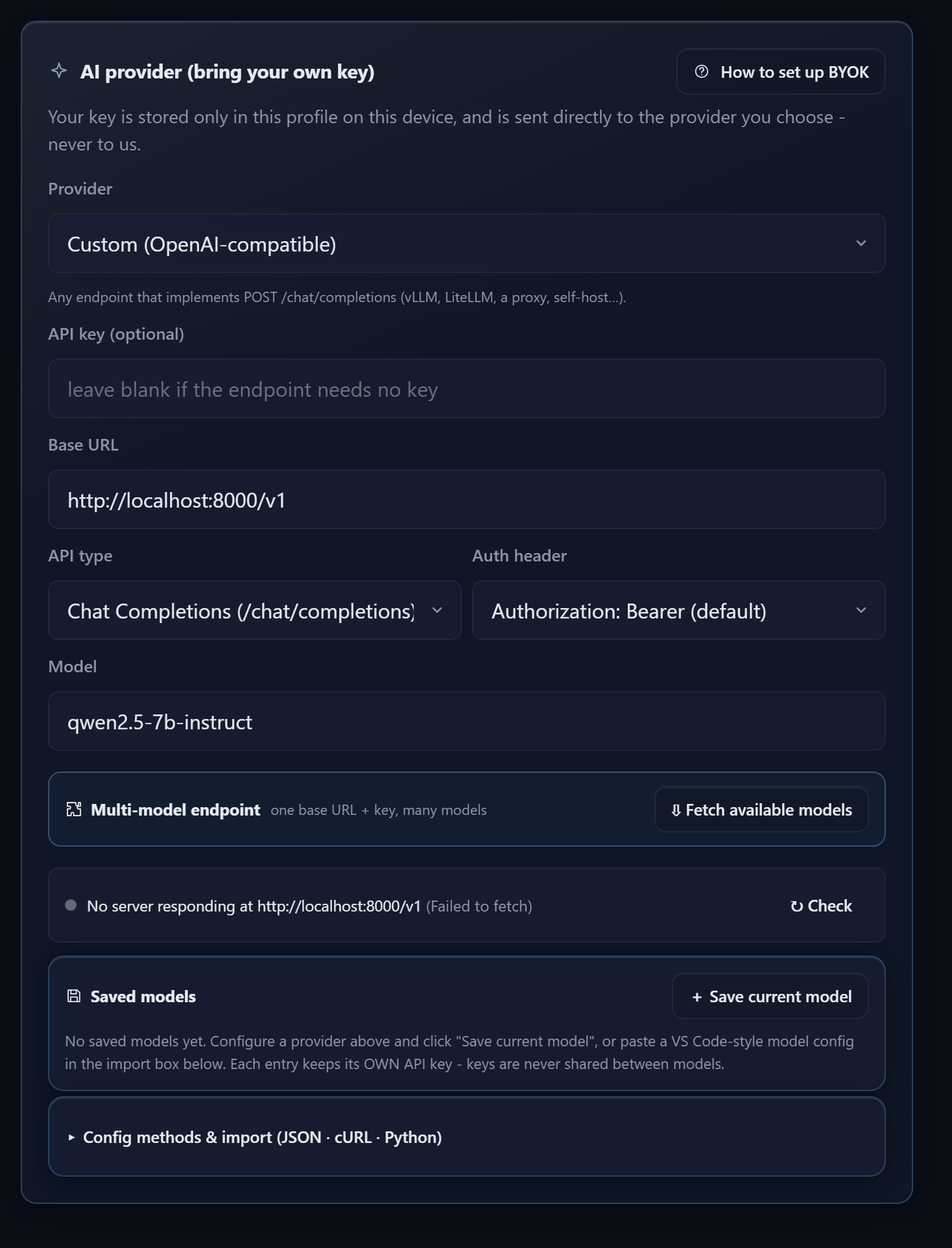
- Choose Custom (OpenAI-compatible).
- Base URL: the root that owns
/chat/completions, for examplehttp://localhost:8000/v1orhttps://gateway.example.com/v1. - API type: Chat Completions for almost everything; Responses API only when the endpoint implements
/responses. - Auth header: Authorization: Bearer by default; some gateways want api-key or x-api-key instead.
- API key is optional here; leave it blank when the endpoint needs none.
- Fetch available models under Multi-model endpoint asks the server for its list. Tick the ones you want, name the endpoint, and + Add N models to library. They are saved as one group sharing the key and URL, so you can switch between them from the console.
Importing a VS Code style config
Open Config methods & import at the bottom of the card, paste a config and press Apply config. Groups with one key and several models import into your saved models. A ${apiKey} placeholder is accepted; add the real key afterwards with add key on the group.
{
  "name": "My gateway",
  "vendor": "custom",
  "apiKey": "${apiKey}",
  "apiType": "chat",
  "models": [
    { "id": "qwen2.5-7b-instruct", "name": "Qwen 2.5 7B", "url": "https://gateway.example.com/v1/chat/completions" },
    { "id": "llama-3.3-70b", "name": "Llama 3.3 70B", "url": "https://gateway.example.com/v1/chat/completions",
      "requestHeaders": { "x-api-key": "${apiKey}" } }
  ]
}
The same panel shows your current setup as Vulture JSON, cURL or Python, with the key masked, so you can copy a working request into another tool.
Saved models: one library, many keys
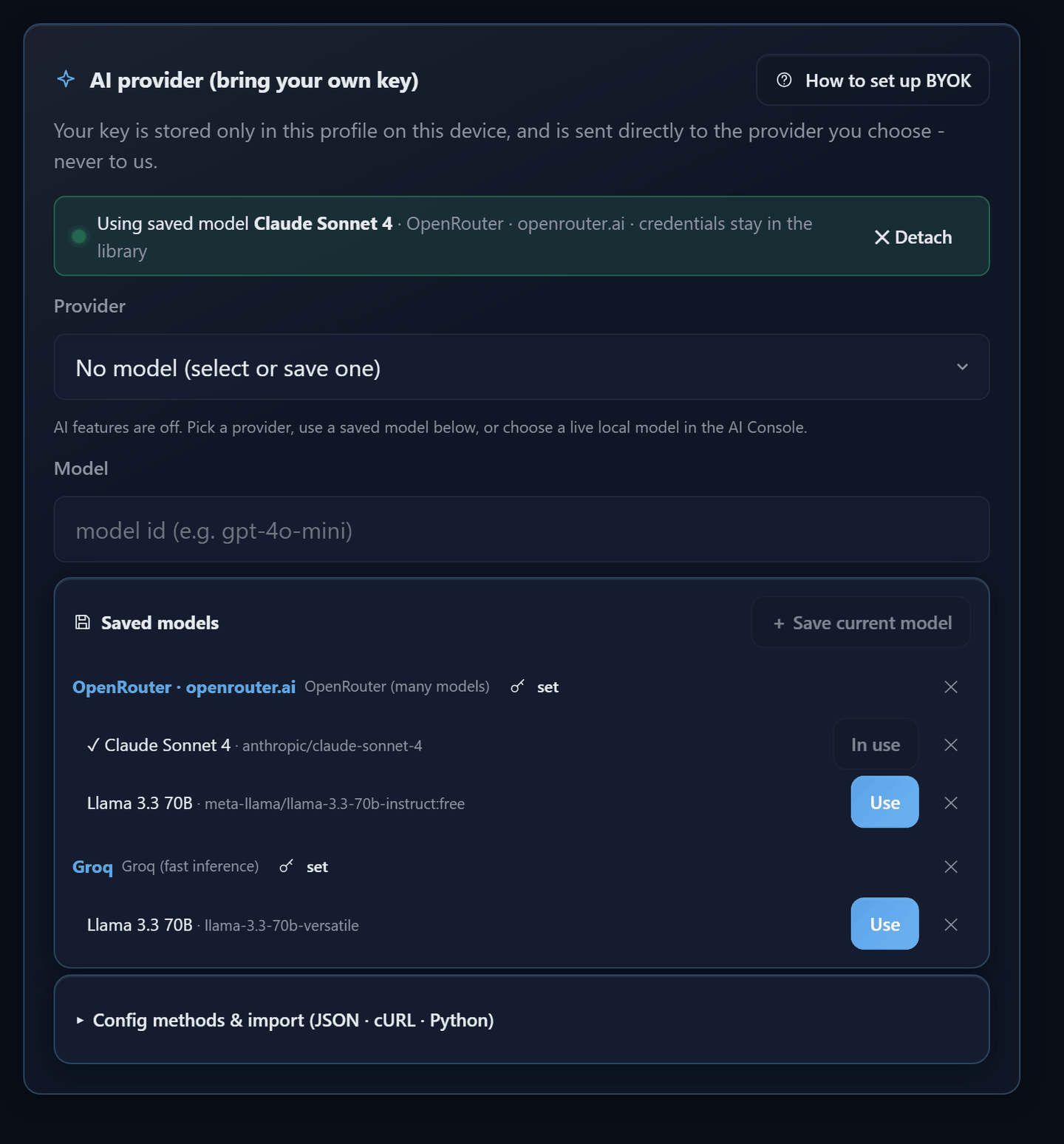
Each saved group keeps its own key and endpoint; keys are never shared between groups and never shown after saving. The active model is referenced by name, so the form stays empty and nothing sensitive sits in it.
- Save current model puts what is in the form into the library and activates it.
- Use beside any model switches to it; In use marks the current one; ✕ Detach at the top returns to the plain form.
- set / add key on a group replaces or adds its key; ✕ deletes a model or a whole group.
- In the AI Console, the model button at the bottom of the composer lists every saved model, live local servers and the built-in model. Switching mid-chat re-sends the conversation, so nothing is lost.
Pro models: no key at all
A Pro plan adds models on our bill. They appear in the same model button under Vulture Pro (shared) and in Settings under Pro AI models. Requests go through our server with our key and count against your plan; they are logged to prevent abuse and fix problems. We choose providers that do not train on your inputs; any model that may is labelled in the app. Your own keys keep working alongside them.
Images: FLUX, Stable Diffusion and more
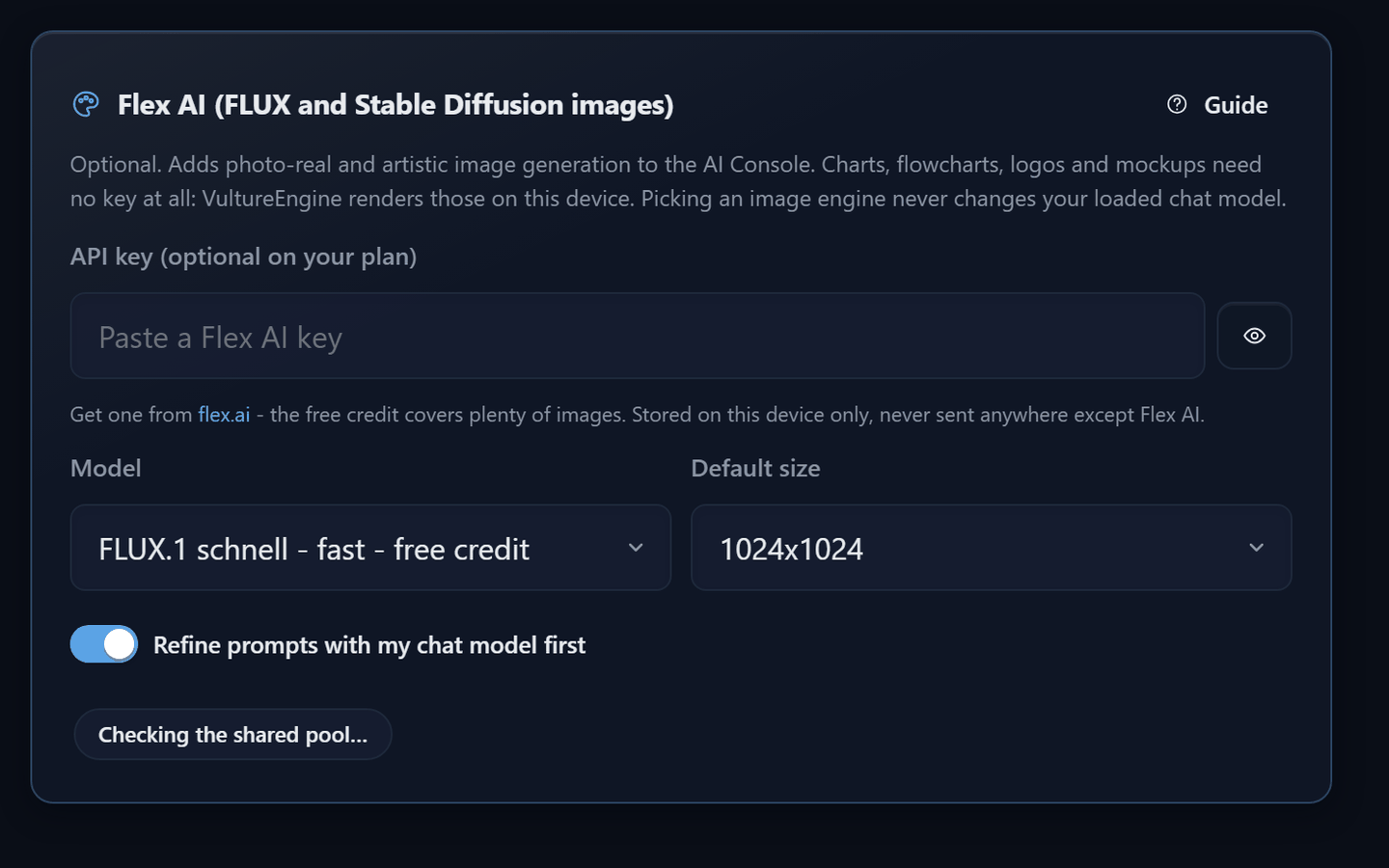
Charts, flowcharts, logos and UI mockups need no key: VultureEngine renders them on your device from what your chat model writes. For photo-real or artistic images the console asks a provider you choose. Two of them are free.
| Provider | Cost | Key | Models |
|---|---|---|---|
| Pollinations | Free, no account. One image every 15 s; a free token from auth.pollinations.ai makes it 5 s and removes the small logo. | none (token optional) | flux, turbo, kontext |
| Hugging Face Inference | Free monthly credits on every account, then pay as you go. | Access token with the "Inference Providers" permission, hf_… | FLUX.1 schnell, FLUX.1 dev, Stable Diffusion 3.5 Large (accept the model's licence on its page first), SD 3 Medium, Qwen Image |
| Cloudflare Workers AI | Free daily allowance of 10,000 neurons (dozens of images), then pay as you go. | Account id, a colon, then an API token with Workers AI Read: accountId:token | FLUX.1 schnell, Stable Diffusion XL, DreamShaper |
| Together AI | Paid per megapixel; a small credit for new accounts. | API key | FLUX.1 schnell, FLUX.2 dev, FLUX 1.1 pro and more (press Fetch models) |
| Flex AI | Paid, about $0.0005 per image, card on file. | API key | FLUX.1 schnell (flux-1-schnell); Fetch models shows anything new |
| OpenAI-compatible endpoint | Whatever it charges. | Base URL plus an optional key | Any model behind /images/generations, e.g. gpt-image-1 |
- Settings → Image generation: pick the provider. Pollinations works at once with no key.
- Paste the key where one is needed; the get one ↗ link opens the right page. For Cloudflare paste
accountId:token. - Pick a model, or press Fetch models where the provider lists them, or type any model id under Custom / other. Choose a default size. It saves as you type and the pill at the bottom says Ready.
- In the AI Console open the model button and pick your provider under Image engine, or type
/engine images. Your chat model stays loaded and, with Refine prompts on, expands each short prompt into a detailed one first. /engine vultureor ↩ VultureEngine hands the console back to your language model.
Tavily: web search for the AI
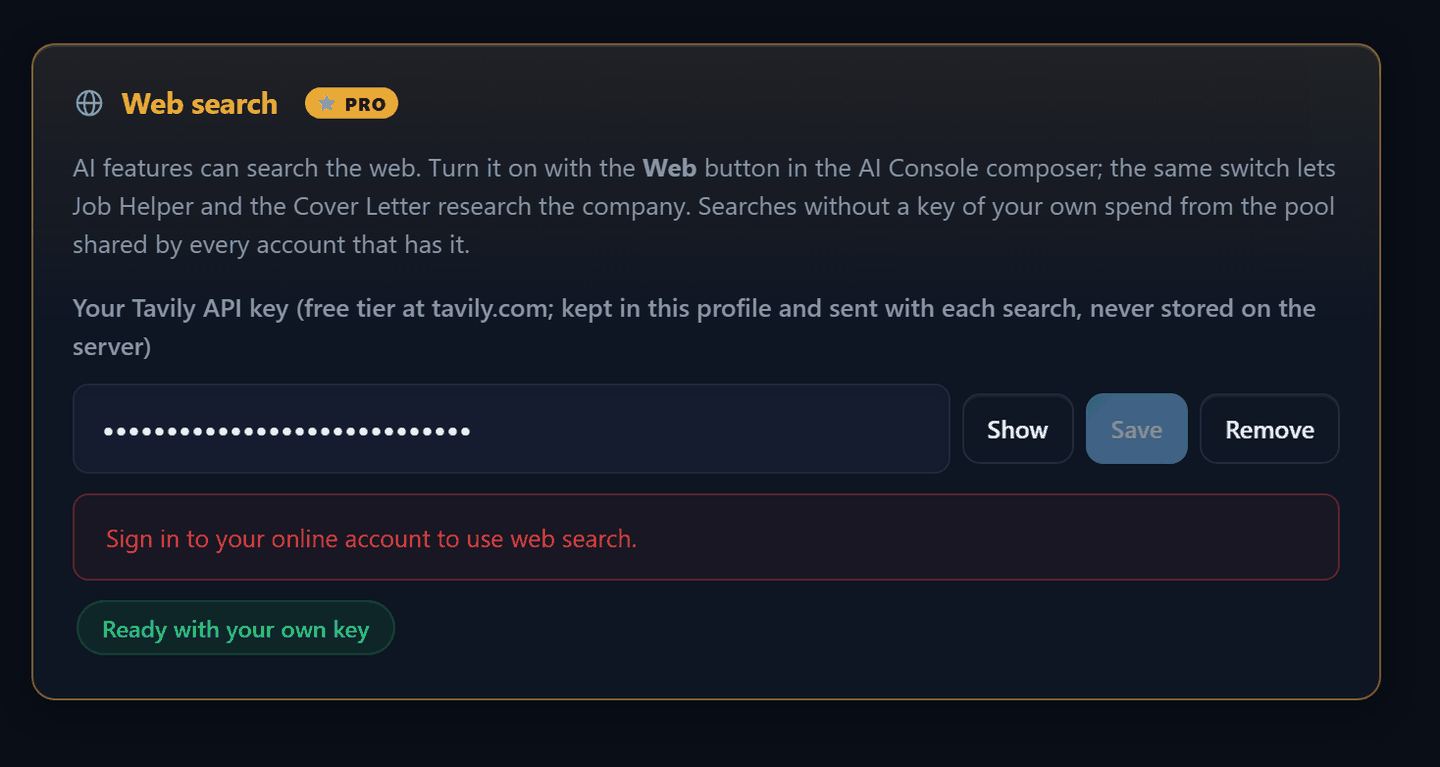
With web search on, the AI Console, Job Helper and the Cover Letter can read current pages and cite them. Pro plans include searches on our shared keys; the Web search permission also lets you use a Tavily key of your own, which is not limited by the plan's daily allowance.
- Sign up at app.tavily.com (the free tier includes monthly credits) and copy the key from API keys. It starts with
tvly-. - Settings → Web search: paste it into Your Tavily API key and press Save. The pill reads Ready with your own key.
- In the AI Console press the Web button in the composer. Each message is searched first and the answer ends with a Sources list.
Apify: job scraping on your own account
Scrapers on your own Apify account, used from Scraped Jobs, Job Search and the AI Console's agent. Runs spend your Apify credit; Pro plans can also run on our shared tokens within the plan's daily limit.
Scraping presets are available in the app and work best on your own Apify key.
- Create an account at console.apify.com, then open Settings → API & Integrations and copy the personal API token. It starts with
apify_api_. - Settings → Apify scraping: paste it and press Save. Vulture checks it straight away; the pill reads Token works · your username.
- Use it from Scraped Jobs → Apify (a preset or any actor) or ask the agent: "find React roles in Berlin posted this week".
Test it
- Open the AI Console. The status badge at the top reads Idle with the provider and model.
- Press the Test connection chip (or type
Reply with exactly: OK). A working key answers within a few seconds. /statsshows the model in use, the context window and this session's tokens. Settings → AI usage keeps the totals per model.
Troubleshooting
"401" or "rejected the key"
The key is wrong, revoked or from a different product of the same company (a chat app login is not an API key). Create a fresh key at the provider and paste it over the old one. For saved groups use set on the group.
"429" or "quota exhausted"
The provider's rate limit or your prepaid balance. Most providers need billing enabled before the first request works. Wait a minute, or switch to another saved model from the console.
Browser: "blocked by CORS" or a request that never answers
Some providers refuse calls from web pages. The desktop app calls them natively; in a browser use OpenRouter, Groq or another provider that allows browser calls, or run through a local proxy as a custom endpoint.
Ollama shows "not running" although it is
Check http://localhost:11434 opens in a browser. In a browser tab also set OLLAMA_ORIGINS=* before starting Ollama. If Ollama runs on another machine, put its address in Ollama server URL.
"model not found"
The id must match the provider's spelling exactly. Use the preset list or the provider's model page, and for local servers pull the model first.
Answers stop half way
The context window is full. The strip above the composer shows how full it is; press Free up context memory or start a new session.
Where is my key stored?
In this profile on this device, and in memory while the app runs. Deleting the profile deletes the keys.